 May, 19 2026
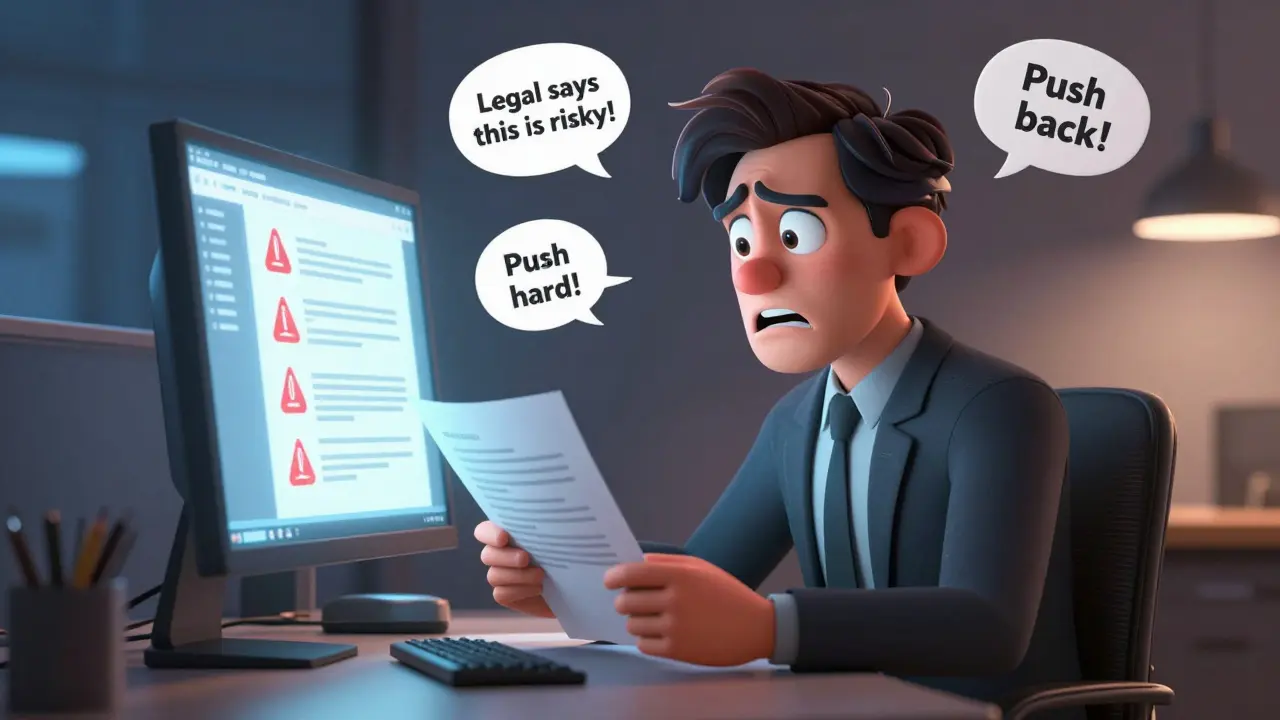
Imagine sending a final service agreement to a major client, only for them to reply with a screenshot of an internal comment that reads: "Legal says this clause is risky-push back hard on liability." Worse yet, the comment is attached to your senior counsel's name. It happens more often than you'd think. When organizations draft contracts in Microsoft Word and convert them to PDF, they often carry over hidden data layers containing internal reviewer identities, comments, and metadata.
This isn't just an embarrassment; it's a legal risk. Disclosing internal deliberations can inadvertently waive attorney-client privilege or expose negotiation strategies. The goal here is simple: deliver a clean, legally enforceable contract PDF where internal names are stripped, leaving only the necessary signatory information visible.
The Hidden Layers Where Reviewer Names Hide
To strip these names effectively, you first need to know where they live. A PDF document is not just a visual image of text; it is a complex container built on the ISO 32000 standard. Internal reviewer names typically hide in four specific locations:
- Annotation Dictionaries: Every comment, highlight, or sticky note in a PDF has an author field (often labeled as /T or Title). If you left a comment during drafting, your name is embedded there.
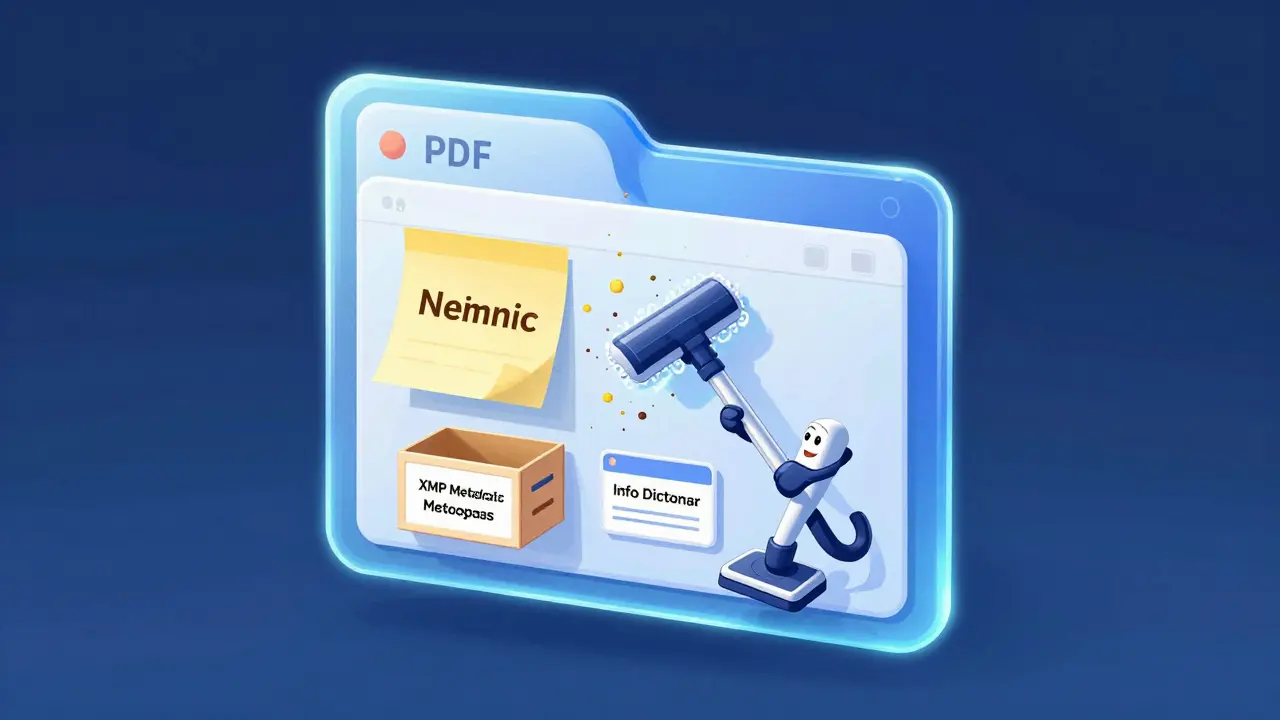
- XMP Metadata Stream: This is the modern metadata layer. It stores fields like Author, Creator, Producer, and custom properties. Even if you don't see it, it's there.
- The Info Dictionary: The older metadata structure that parallels XMP. Many naive cleaners only wipe one, leaving the other intact.
- Visible Text: Sometimes, internal review tables or sign-off logs are printed directly onto the page content stream.
If you simply draw a white box over a name in Word before exporting, the underlying text object remains searchable and extractable. True removal requires sanitizing the document structure itself.
Step-by-Step: Cleaning Your Contract PDF
You can approach this problem at two stages: during the authoring phase in Word, or after conversion to PDF. The most robust method combines both.
Phase 1: Scrubbing in Microsoft Word
Before you even touch a PDF tool, clean the source file. Microsoft Word tracks every change and comment via its Track Changes feature. Here is how to ensure those names don't migrate to the PDF:
- Accept All Changes: Go to the Review tab and select "Accept All Changes." This merges edits into the main text but does not delete the history of who made them.
- Delete Comments: Manually delete all comments. Alternatively, use the Document Inspector.
- Run the Document Inspector: In Word, go to File > Info > Check for Issues > Inspect Document. Select "Document Properties and Personal Information" and click "Remove All." This strips author names, initials, and email addresses from the file's core properties.
Once cleaned, export the document to PDF using Word's native "Save as PDF" function. However, do not assume this is enough. Exporting can sometimes reintroduce machine-specific metadata or fail to clear residual annotation data.
Phase 2: Sanitizing the PDF
Now you have a PDF, but it likely still contains hidden metadata about who created it or what software generated it. You need a PDF metadata remover to handle the final scrub.
For users with Adobe Acrobat Pro, the process is built-in. Open the file, navigate to the Tools pane, and select "Redact." Choose "Sanitize" to remove hidden information. This permanently deletes metadata, comments, and hidden text layers. It is irreversible, so always work on a copy.
If you do not have an Adobe subscription, or if you prefer not to upload sensitive contracts to cloud-based services, browser-based tools offer a strong alternative. For instance, Vaulternal's Metadata Remover processes files entirely locally in your browser using WebAssembly. This means the contract never leaves your device-a critical factor when dealing with confidential legal documents. It targets both the Info dictionary and the XMP stream simultaneously, ensuring no parallel metadata store retains your internal team's details.
Comparison of PDF Cleaning Methods
| Method | Effectiveness | Privacy Risk | Cost |
|---|---|---|---|
| Manual Whiteout (Word) | Low (Text remains extractable) | None (Local) | Free |
| Adobe Acrobat Pro Redact | High (Industry Standard) | Low (Local/Desktop) | Subscription Required |
| Online Cloud Cleaners | Medium to High | High (File Uploaded to Server) | Often Free/Freemium |
| Browser-Based Local Tools | High (Info + XMP) | None (Client-Side Only) | Free |

Why Privacy Matters in Contract Delivery
Stripping names isn't just about tidiness; it's about governance and compliance. Under frameworks like the GDPR, employee names and email addresses are considered personal data. While sharing a lawyer's name isn't inherently illegal, data minimization principles suggest you should only share what is strictly necessary for the business transaction.
Furthermore, in litigation, internal comments can be discoverable. If a counterparty receives a PDF containing internal notes labeled "Confidential Strategy," you may inadvertently waive privilege protections. By using a dedicated sanitizer, you create a clean break between your internal audit trail (kept in your CLM system) and the external-facing document.
Best Practices for Legal Teams
To make this process seamless, integrate it into your standard operating procedures:
- Use Role-Based Templates: Configure your Contract Lifecycle Management (CLM) platform to generate separate internal and external versions. The internal version keeps the audit trail; the external version is pre-sanitized.
- Verify Before Sending: Use a metadata inspector view to preview what will be seen. Ensure fields like "Author" and "Last Modified By" are blank or generic.
- Avoid Re-Rasterization: Choose tools that rewrite metadata without altering the visual content. Some aggressive cleaners re-render pages, which can blur fonts or shift formatting. Look for "identical pixel output" guarantees.
By treating metadata hygiene as part of the signing workflow, you protect your team's privacy and maintain professional boundaries with clients.
Does converting Word to PDF automatically remove reviewer names?
No. Converting a Word document to PDF often carries over hidden metadata, including author names, comment authors, and revision history. You must explicitly run a Document Inspector in Word and then sanitize the resulting PDF to ensure all internal identifiers are removed.
What is the difference between redacting text and removing metadata?
Redacting text removes visible content from the page, such as blacking out a name. Removing metadata strips hidden data layers like the Author field, creation dates, and comment dictionaries. To fully hide internal reviewers, you often need to do both if their names appear in comments or properties.
Is it safe to use online PDF metadata removers for contracts?
It depends on the tool. Many online services upload your file to a remote server for processing, which poses a privacy risk for sensitive contracts. Browser-based tools that process files locally via WebAssembly offer a safer alternative because the document never leaves your device.
Can I recover removed metadata from a sanitized PDF?
Generally, no. Proper sanitization tools permanently delete metadata streams and annotation objects. Once the Info dictionary and XMP data are wiped, the original authorship and reviewer data cannot be recovered from that specific file copy.
Why do PDFs have two metadata stores (Info and XMP)?
The PDF specification evolved over time. The Info dictionary is the legacy metadata format, while XMP (Extensible Metadata Platform) is the modern standard. A comprehensive cleaner must address both to ensure no hidden data remains, as some tools only target one of the two.